Tablet Administrator Guide
The tablet Administrator Dashboard is accessible only to users with the ADMINISTRATOR role on the tablet. It provides user management, server settings, survey diagnostics, and developer tools.
Accessing the admin dashboard
Log in to the tablet with administrator credentials. The Administrator Dashboard appears with the following options:
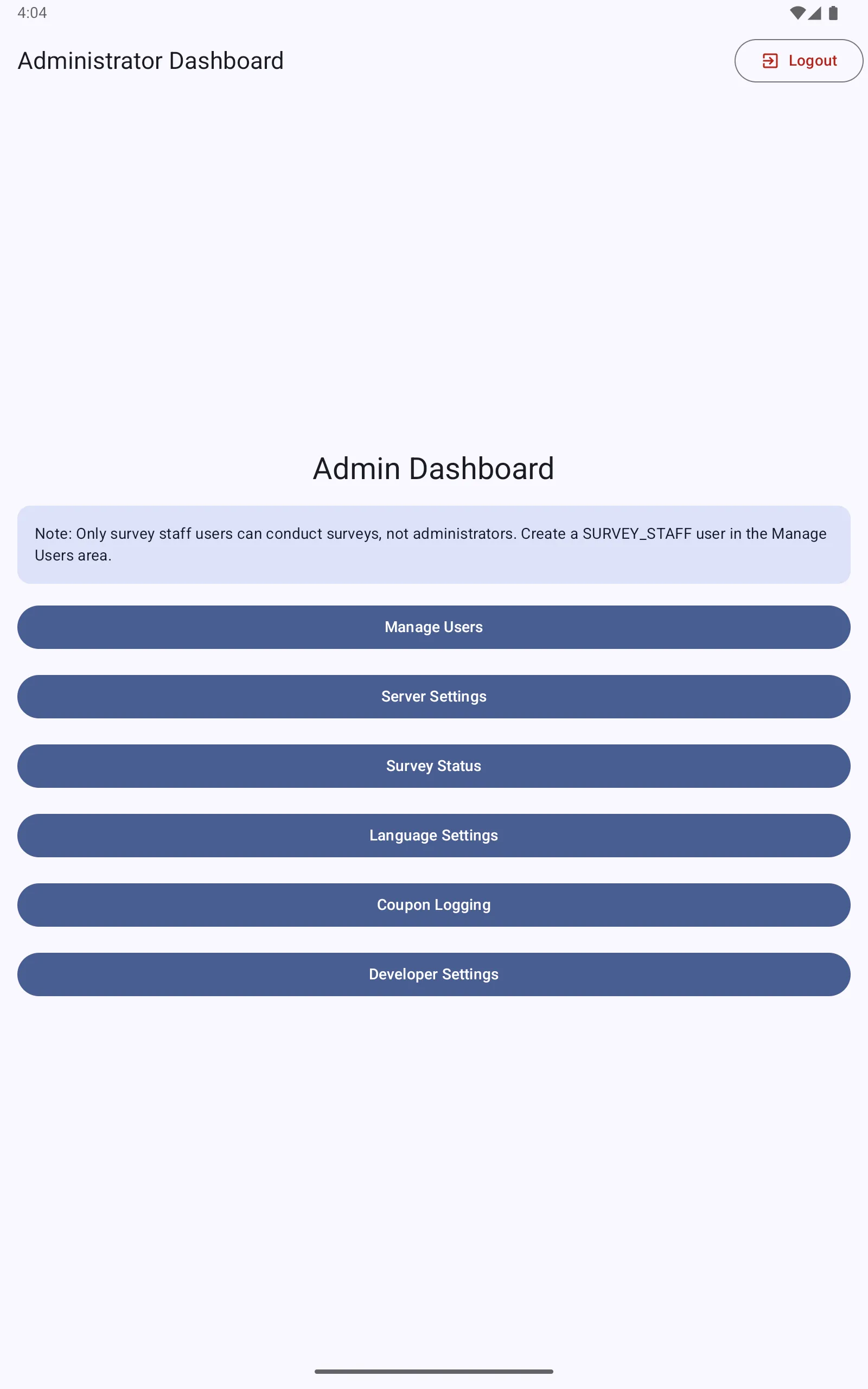
- Manage Users: add, edit, and delete tablet user accounts
- Server Settings: view and update the server URL and API key
- Survey Status: view upload statistics and queue
- Language Settings: configure the tablet’s display language
- Coupon Logging: view the coupon chain log
- Developer Settings: debugging tools for survey logic testing
Managing users
Tap Manage Users to see all tablet user accounts:
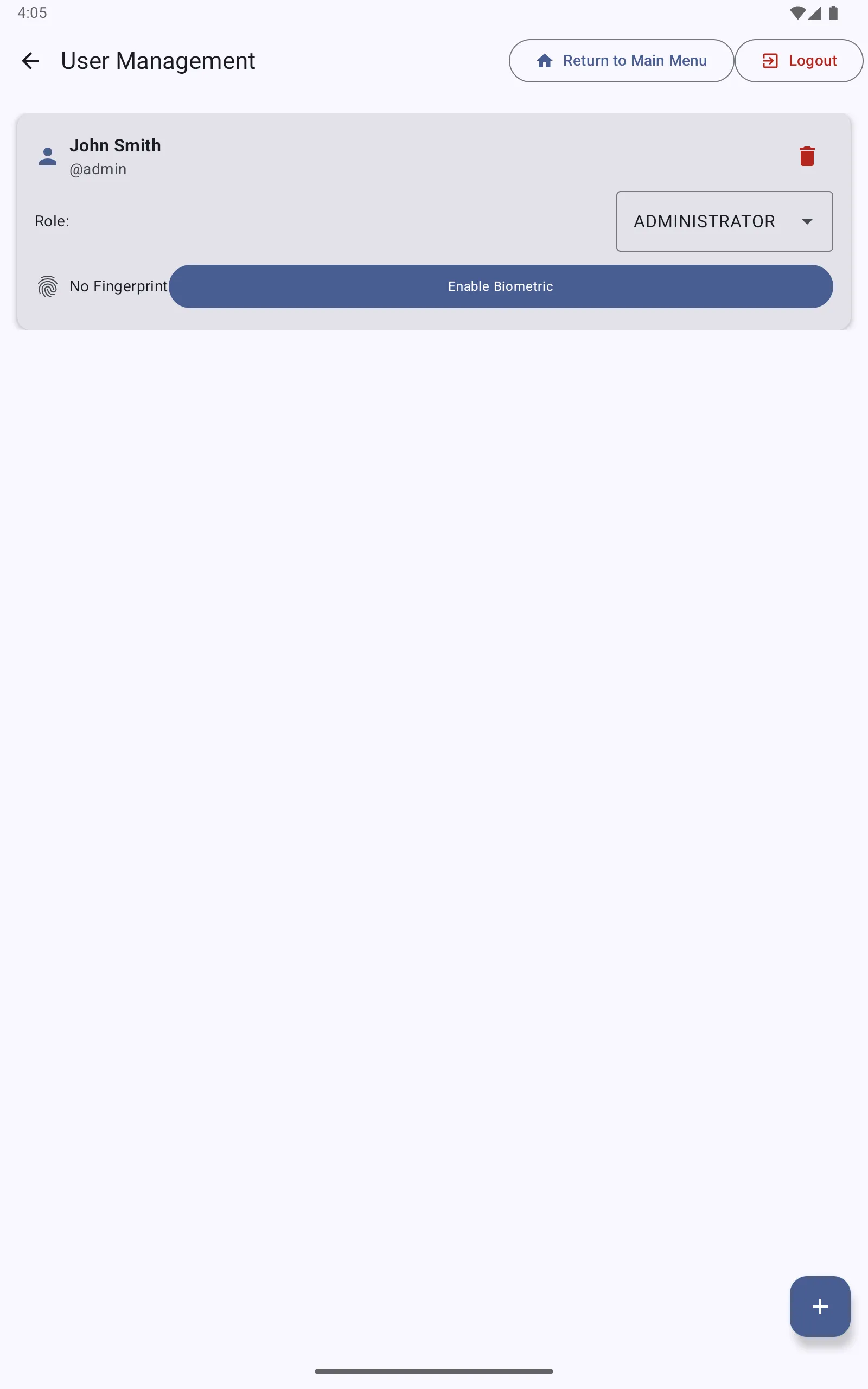
Each user card shows:
- Username and display name
- Role (ADMINISTRATOR or SURVEY_STAFF)
- Fingerprint status (enrolled or not enrolled)
Adding a user
Tap the + button to add a new user:
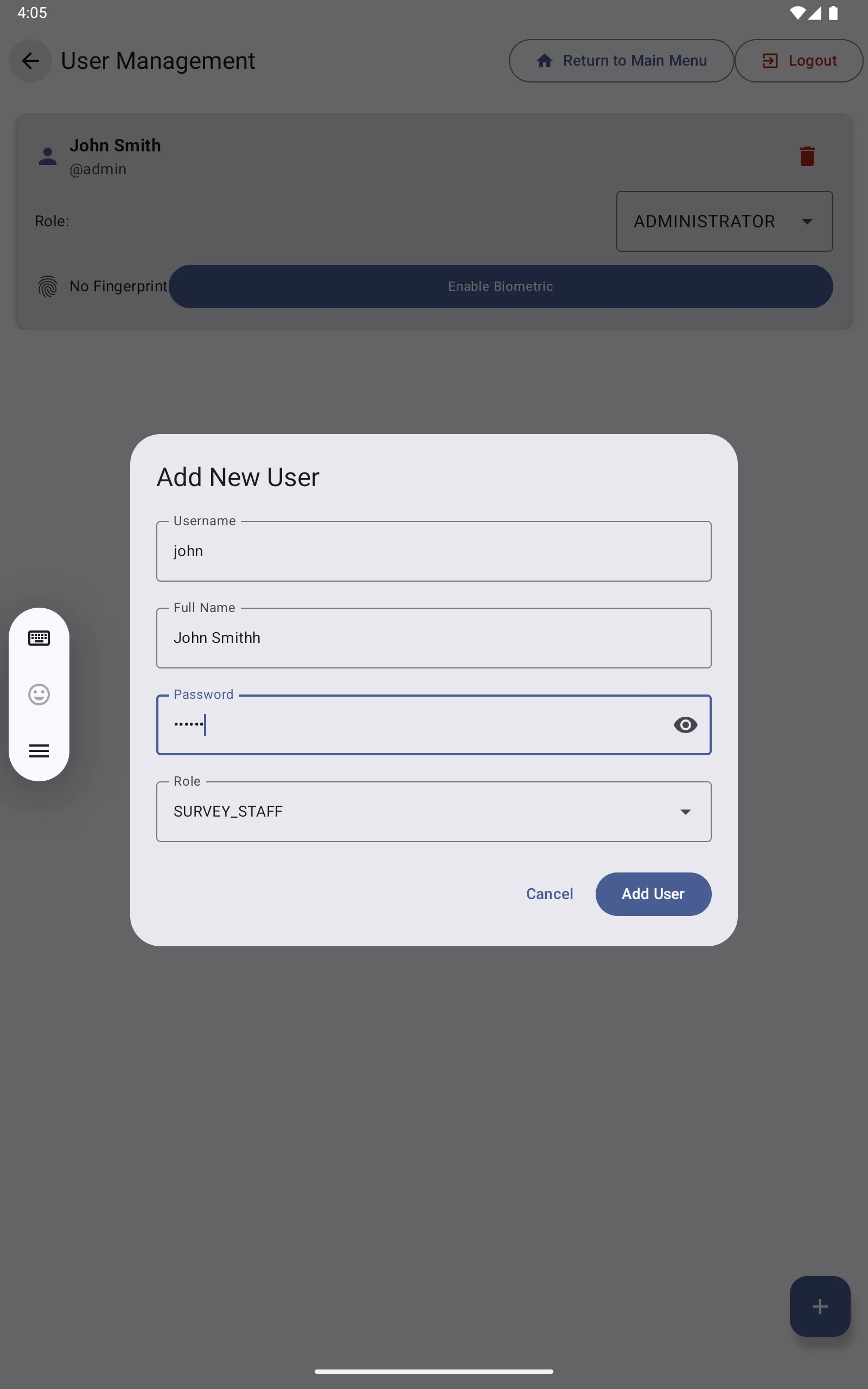
Fill in:
- Username: at least 3 characters
- Full Name: display name
- Password: at least 3 characters
- Role:
ADMINISTRATORorSURVEY_STAFF
Tap Add User. The new user can log in immediately.
Note: Only SURVEY_STAFF users can conduct surveys. Administrators are locked out of the survey workflow to prevent conflicts of interest. Create at least one SURVEY_STAFF account before data collection begins.
Enrolling a fingerprint
After adding a user, tap Enable Biometric on their user card to enroll their fingerprint. The SecuGen HU20-A scanner must be connected via USB OTG. Follow the prompts to capture the fingerprint.
Changing a user’s role
Tap the Role dropdown on a user card and select the new role. The change takes effect immediately.
Deleting a user
Tap the trash icon on a user card to delete the account. Deleting a user does not delete any survey data they collected.
Survey Status
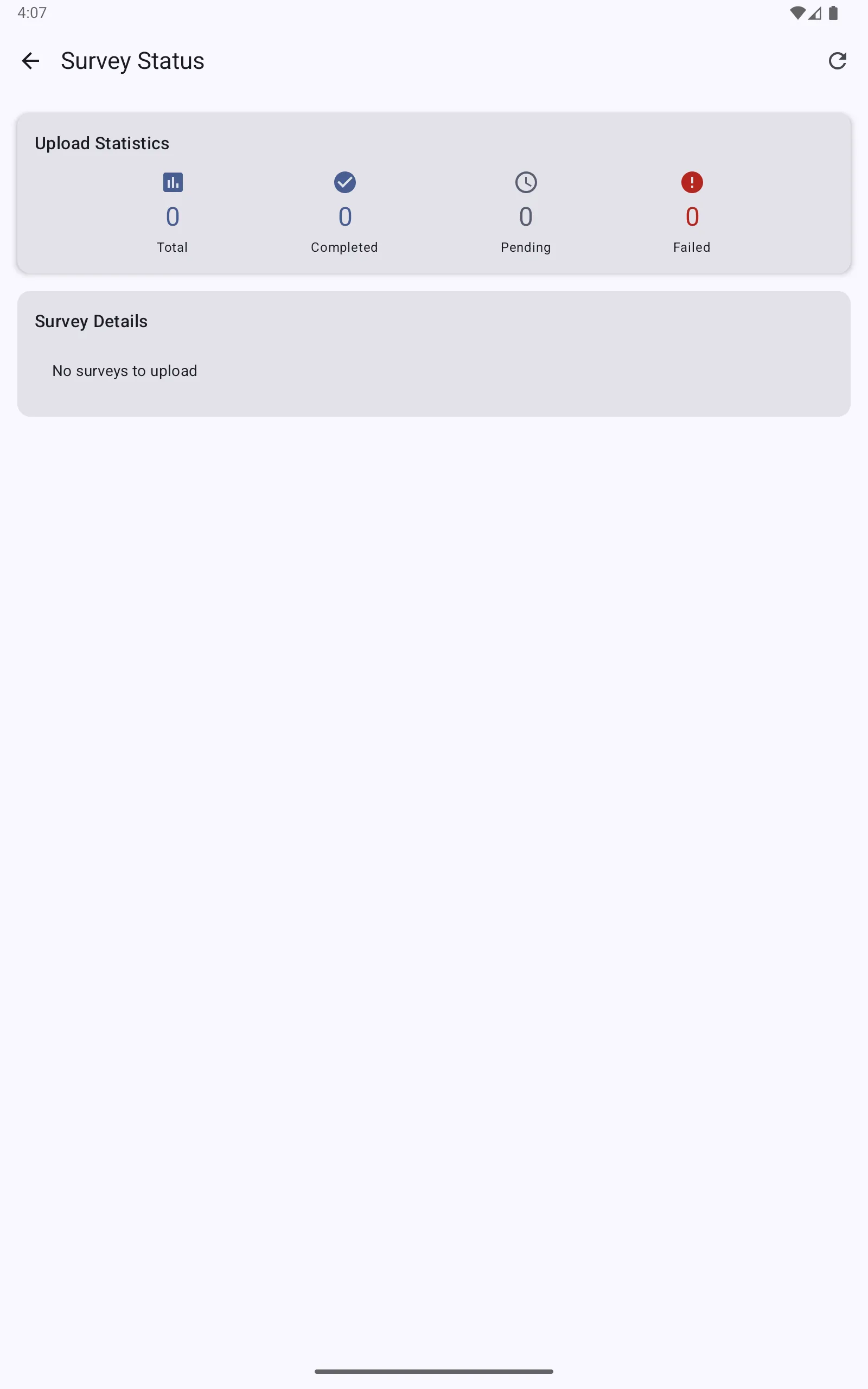
Tap Survey Status to see upload statistics:
| Statistic | Description |
|---|---|
| Total | All completed surveys on this tablet |
| Completed | Successfully uploaded to the server |
| Pending | Waiting to upload (no connectivity or retry in progress) |
| Failed | Upload failed after multiple retries |
Tap the refresh icon to update the counts. The app retries failed uploads automatically when connectivity is restored.
Server Settings
Tap Server Settings to view or change:
- Server URL: the URL of the management server
- Facility API Key: the key that authenticates this tablet to the server
These are set during initial tablet setup and should not need to change unless the server is moved.
Developer Settings
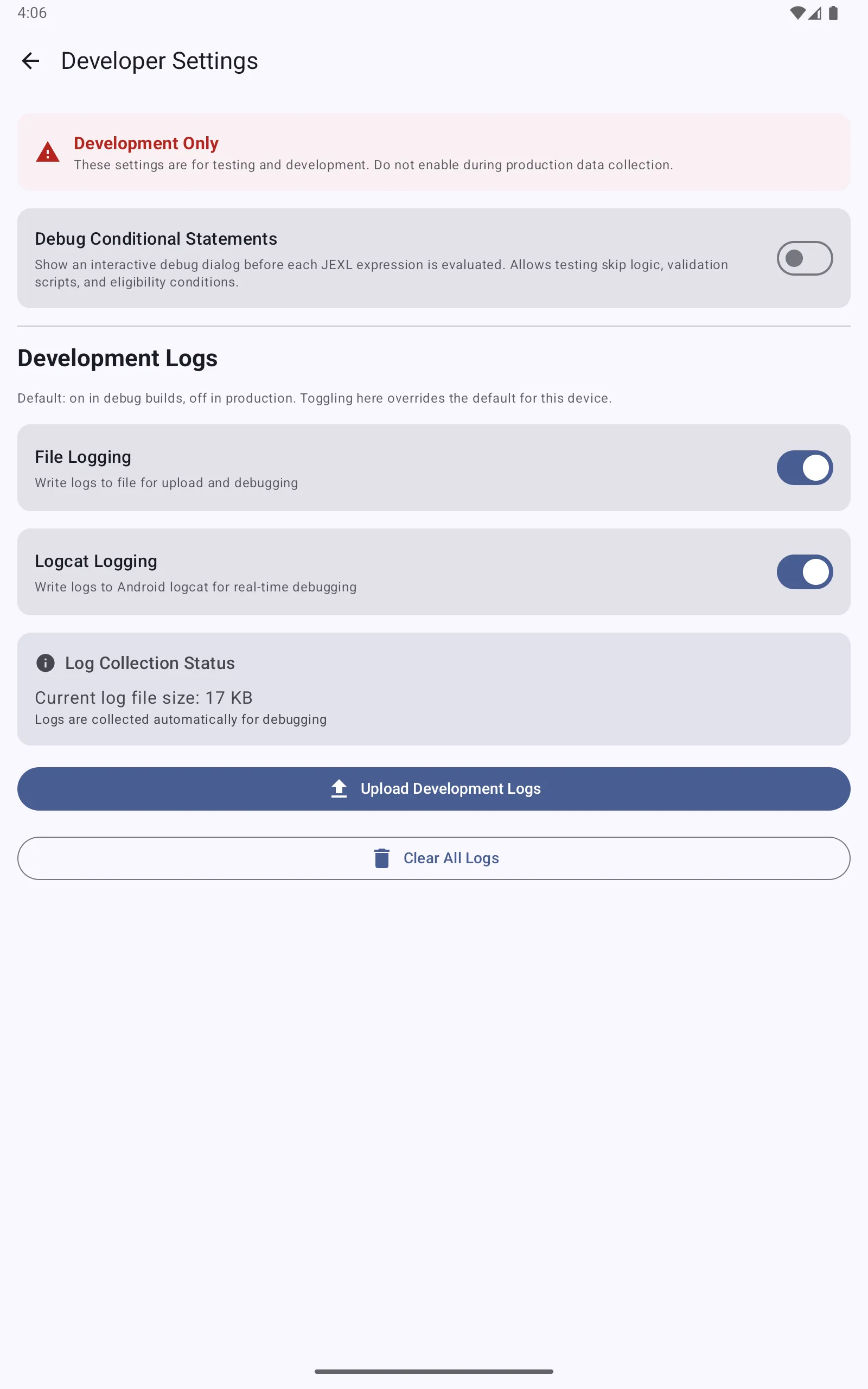
Tap Developer Settings for diagnostic tools:
| Setting | Description |
|---|---|
| Debug Conditional Statements | Shows an interactive debug dialog before each JEXL expression is evaluated. Use this to test skip logic, validation scripts, and eligibility conditions. Turn off before real data collection. |
| File Logging | Write log events to a file on the device |
| Logcat Logging | Write log events to Android logcat for real-time debugging via Android Studio |
The Upload Development Logs button sends the device log file to the server for remote debugging.
Important: Always turn off Debug Conditional Statements before beginning real data collection. It interrupts every condition evaluation with a dialog that staff will need to dismiss.