
Survey Logic
SALT lets you control four things with short written conditions:
- Skip a question: hide it for some participants.
- Check an answer: reject an answer that does not make sense.
- Skip ahead: jump past a block of questions.
- Decide eligibility: let only the intended participants take the survey.
You write these conditions in the survey editor, for example, age >= 18. You do not need to be a programmer, but you do need to follow the rules in this guide carefully: a wrong condition quietly changes who sees what.
The conditions are written in a small, widely-used expression language called JEXL. This guide covers everything you need; the full language reference is at https://commons.apache.org/proper/commons-jexl/reference/syntax.html.
Where you write logic
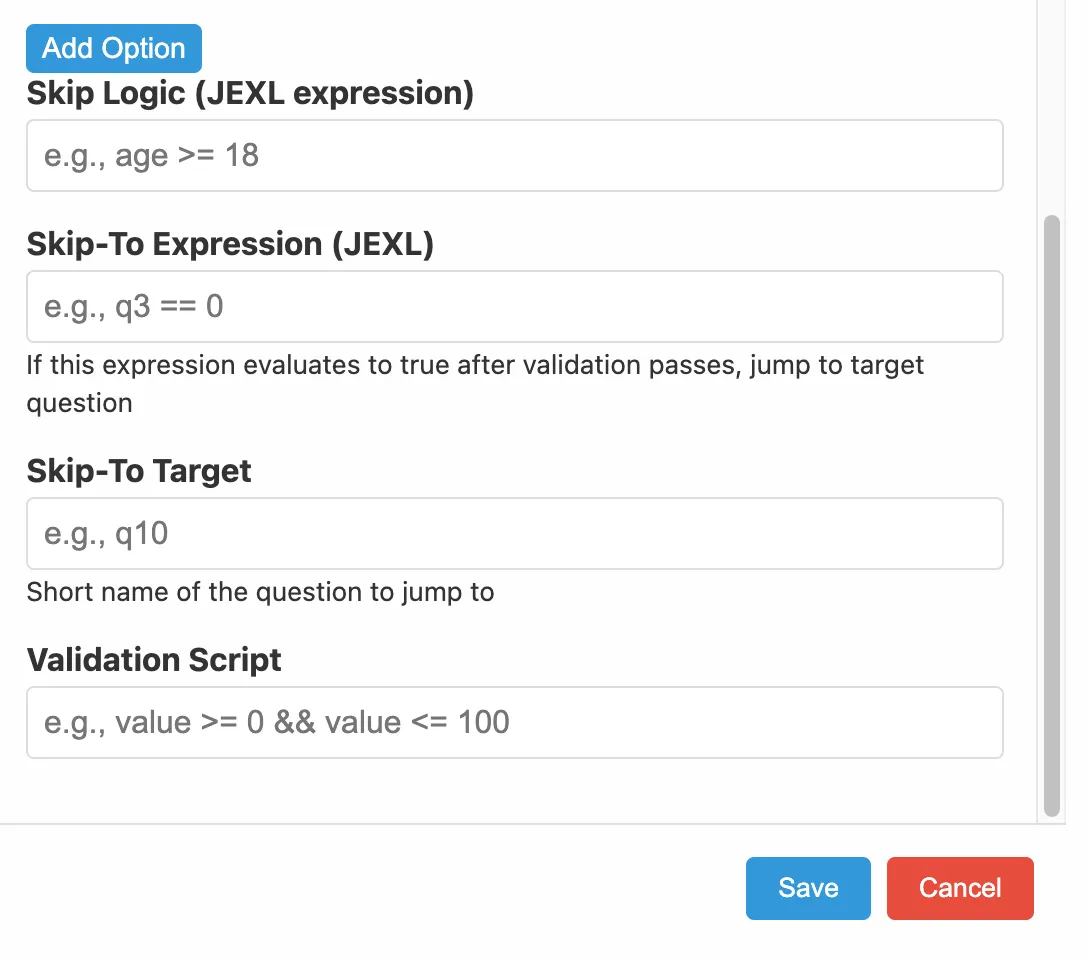
Open a question in the survey editor (the question edit modal). Near the bottom are three logic fields:
| Field in the question edit modal | What it does |
|---|---|
| Skip Logic | Hides this question when the condition is true. |
| Skip-To Expression + Skip-To Target | After this question is answered, jumps to another question. |
| Validation Script | Decides whether the answer just entered is accepted. |
Eligibility is set once for the whole survey, in the Eligibility Settings card of the editor:
| Field | What it does |
|---|---|
| Eligibility Script | After the eligibility questions, decides whether the participant may continue. |
Leave any of these blank and it does nothing, the question always shows, every answer is accepted, no jump.
Referring to a question’s answer
Every question has a Short Name: a field in the question edit modal, a short label such as age or tsres. In a condition, you refer to a participant’s answer by typing that Short Name.
Short Names are case-sensitive: type them exactly as they were set.
What an answer looks like
When you name a question in a condition, you get the participant’s answer to that question:
- Multiple choice: you get the number of the option they chose. Options are numbered starting at 0: the first option in the list is
0, the second is1, the third is2, and so on. Sosex == 1means “the participant chose the second option of the question namedsex.” - Numeric: the number they entered.
- Text: the text they typed.
- Multi-select: the set of options they ticked (each option still numbered from 0). See Multi-select questions.
- A question with no answer: one that was skipped, or one that comes later in the survey, counts as nothing. A comparison against it is simply false.
Options are numbered from 0, not 1. This is the most common mistake. The first option is
0. If a question lists Yes then No, then Yes is0and No is1. If you are unsure what number an option has, use the logic tester: it shows you.
Writing conditions
A condition compares values and produces a yes/no (true/false) result.
| To do this | Use |
|---|---|
| Is equal to / is not equal to | == != |
| Less than / greater than | < <= > >= |
| Both parts must be true | && |
| Either part may be true | || |
| Not / the opposite of | ! |
| Group parts together | ( … ) |
Examples:
age >= 18, the answer toageis 18 or more.sex == 1 && age >= 18,sexis the second option andageis at least 18.result == 0 || result == 2,resultis the first or the third option.
Text values must be in quotes: nationality == 'Ugandan'.
Skip Logic, hiding a question
The Skip Logic field hides the question when its condition is true.
Skip Logic is a skip-when rule. Write the condition under which the question should not appear, not the condition under which it should.
Examples from the CRANE MSM survey:
- On the question
elmssxt(last anal sex), Skip Logiceltgsx != 0.eltgsx(“ever had sex”) has Yes as its first option (0), so this hideselmssxtwhenever the participant did not answer Yes. - On
condno(“why no condom”), Skip Logiccond != 1.condhas No as its second option (1), socondnois asked only after a No.
Validation Script, checking an answer
The Validation Script runs after the participant enters an answer. If the condition is true, the answer is accepted. If it is false, the answer is rejected and the participant must correct it before continuing.
Inside a Validation Script, the answer being checked is called value:
- On a numeric age question:
value >= 15 && value <= 89 - On a “how many people” question whose answer cannot exceed an earlier count:
value >= 0 && value <= dgbehav
value is a reserved word; the editor will not let you give a question the Short Name value.
Take extra care with Validation Scripts: a mistake in one rejects every answer, leaving the participant unable to continue. Always test it.
Skip-To, jumping ahead
Skip-To leaps over a run of questions in one step. It uses two fields in the question edit modal:
- Skip-To Expression: a condition.
- Skip-To Target: the Short Name of the question to jump to.
After the question is answered (and passes its Validation Script), if the Skip-To Expression is true, the survey jumps straight to the Skip-To Target and everything in between is passed over. If false, the survey continues normally.
The answer just given is available as value here too.
Example: on tsevno, asked only of people who have never tested for HIV, the Skip-To Expression jumps the participant ahead to the PrEP block (Skip-To Target prmss), past the HIV-treatment questions for people who have tested.
Skip Logic vs Skip-To: use Skip Logic to drop a single question; use Skip-To to leap over a whole block at once.
Eligibility Script
The Eligibility Script, in the Eligibility Settings card, runs once after the eligibility questions. If it is true, the participant is eligible and continues; if false, they are shown the ineligibility message and the survey ends.
It can use the Short Name of any eligibility question. The CRANE MSM survey uses:
tutsex == 1 && tutage >= 18 && eltgsx == 0 && elmssxt == 0 && (elcoup == 0 || elcoup == 1), the second option for tutsex (male), at least 18, Yes to having had sex, and so on.
The ineligibility message itself is edited on the System Messages tab, as the “Ineligibility Message”.
Multi-select questions
A multi-select answer is the set of options the participant ticked. To test whether a particular option was ticked, use =~, which means “is among”:
2 =~ q, option number 2 (the third option) was ticked.2 =~ q || 4 =~ q, option 2 or option 4 was ticked.2 =~ q && 4 =~ q, option 2 and option 4 were both ticked.
The question edit modal also has Minimum Selections and Maximum Selections fields to limit how many options may be ticked.
Common mistakes
| Mistake | Fix |
|---|---|
| Counting options from 1 | The first option is 0, the second is 1. |
| Treating Skip Logic as “show when” | It hides the question when true, write the skip-when condition. |
| A typo in a Short Name, or wrong upper/lower case | Type Short Names exactly as set. |
| Forgetting quotes around text | nationality == 'Ugandan', not nationality == Ugandan. |
| A broken Validation Script | It rejects every answer, test it before publishing. |
Testing your logic
The tablet has a built-in logic tester that shows every condition as the survey runs.
To turn it on: on the tablet, log in as an administrator, open Developer Settings, and switch on Debug Conditional Statements.
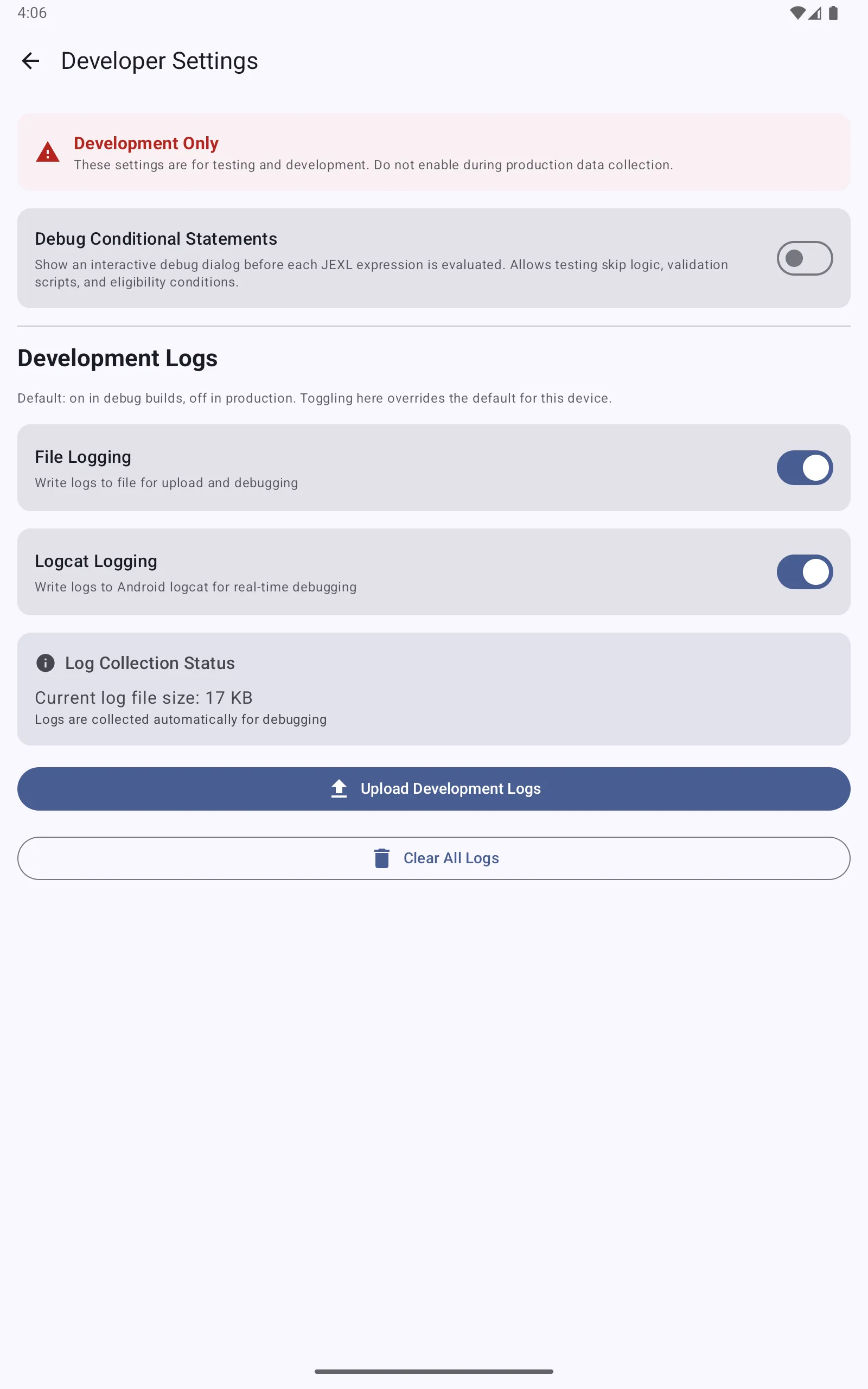
With it on, each time the survey reaches a Skip Logic, Validation Script, Skip-To, or Eligibility condition, a window appears showing:
- Context: a table of every question’s Short Name and the participant’s current answer. This is the surest way to see what number an option produced.
- Statement: the condition itself. You can edit it here to try variations and see the result change; edits made here are for testing only and are not saved.
- Result: what the condition currently works out to, or an error message if the condition is written incorrectly.
Tap Continue to let the survey proceed.
Turn Debug Conditional Statements back off before real data collection, otherwise staff are interrupted by this window at every condition.