Facilities
Facilities represent the health sites where data collection takes place. Each facility has its own API key and configuration, and tablets are registered to a specific facility.
Facility list
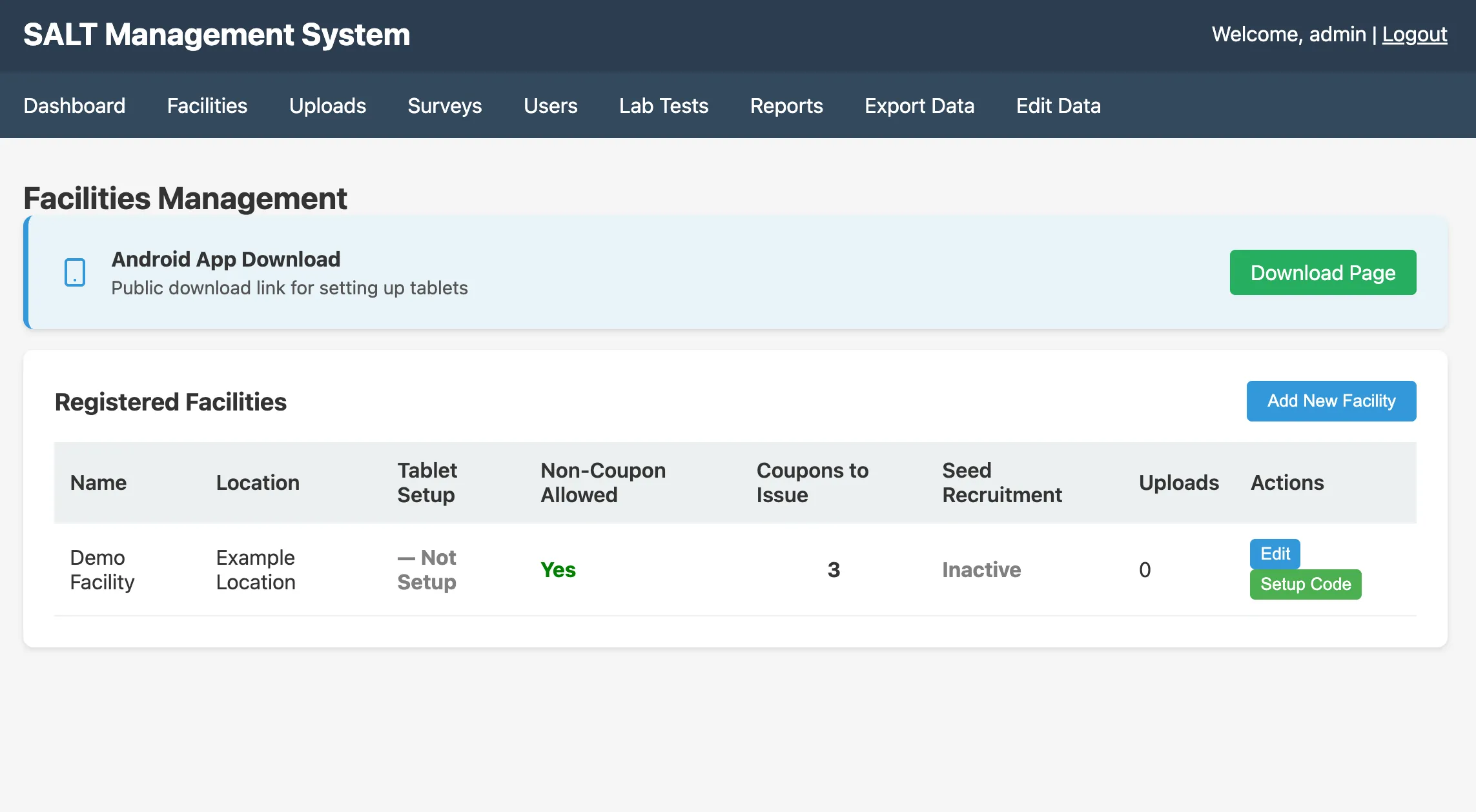
The facilities page shows all registered facilities with:
- Name: the facility’s display name
- Location: geographic location or site description
- Setup: whether the facility has been set up on at least one tablet
- Allow without coupons: whether participants may be enrolled without presenting a coupon
- Coupons: number of coupons issued per participant
- Seed Recruitment: whether seed recruitment (participants without coupons) is active
Adding a facility
Click Add Facility and complete the form:
- Name: display name for the facility
- Location: e.g. city, district, or clinic name
Editing a facility
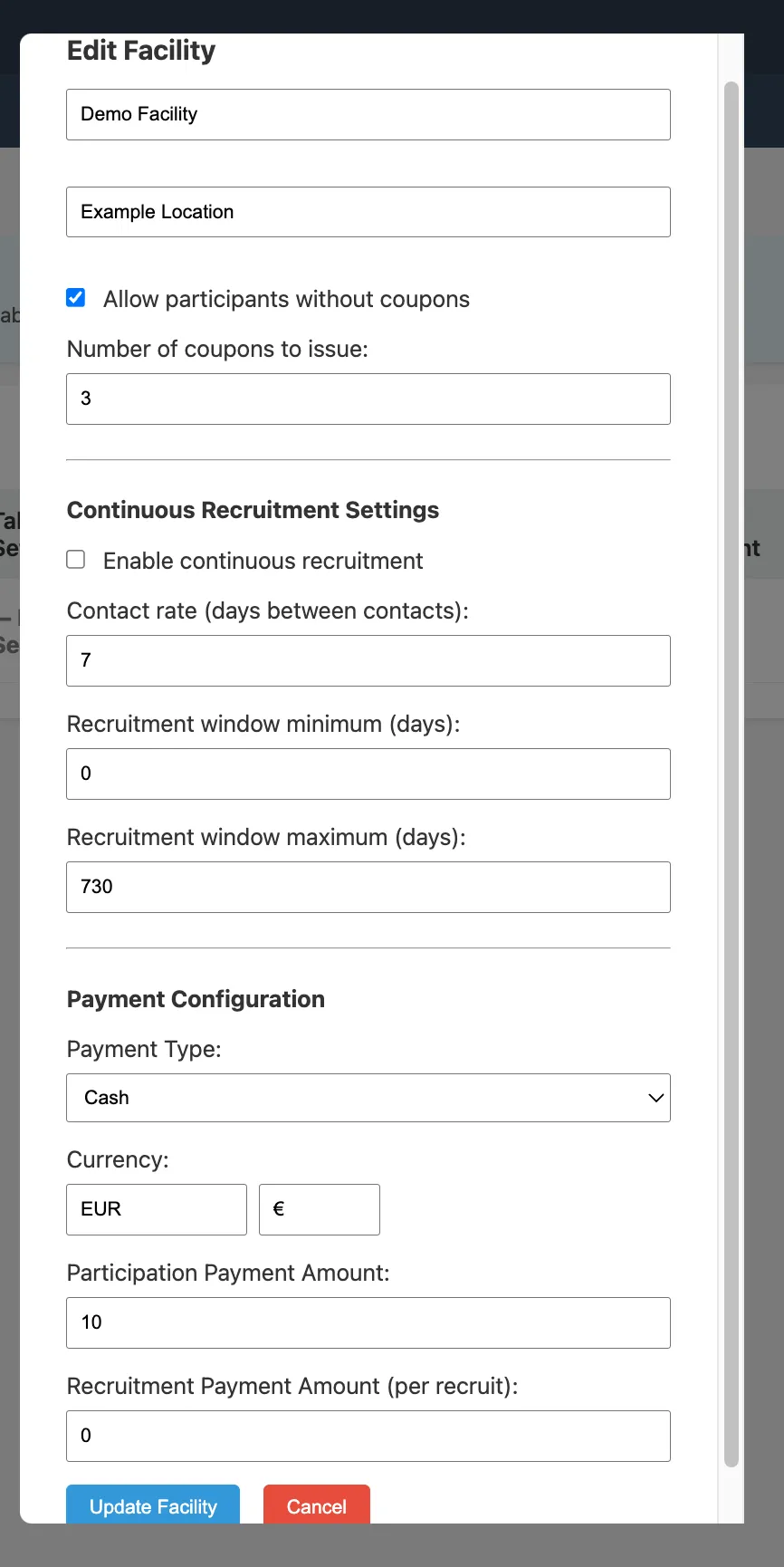
Click the edit icon next to a facility to open the edit modal:
Basic settings
| Field | Description |
|---|---|
| Name | Facility display name |
| Location | Geographic description |
| Allow without coupons | If checked, participants may be enrolled even if they have no referral coupon |
| Number of coupons | How many coupons each enrolled participant receives to recruit others (typically 3) |
Continuous recruitment settings
| Field | Description |
|---|---|
| Contact rate | How often staff are asked to contact previous study subjects to invite them to re-enrol in the survey |
| Recruitment window min | Minimum number of days since a subject’s enrolment before they become eligible for re-recruitment via continuous recruitment (i.e. staff calling them to participate again) |
| Recruitment window max | Maximum number of days since enrolment during which a subject remains eligible for re-recruitment |
Payment settings
| Field | Description |
|---|---|
| Payment Type | Cash or other payment methods configured in the system |
| Currency | ISO currency code and symbol (e.g. EUR €) |
| Participation Payment | Amount paid to each enrolled participant |
| Recruitment Payment | Amount paid to the person who recruited this participant (paid when the recruit presents their coupon) |
Setup code
Before connecting a tablet to a facility, you need to generate a one-time setup code:
- Click Setup Code next to the facility
- A 6-character alphanumeric code is displayed
- Enter this code on the tablet during the setup wizard
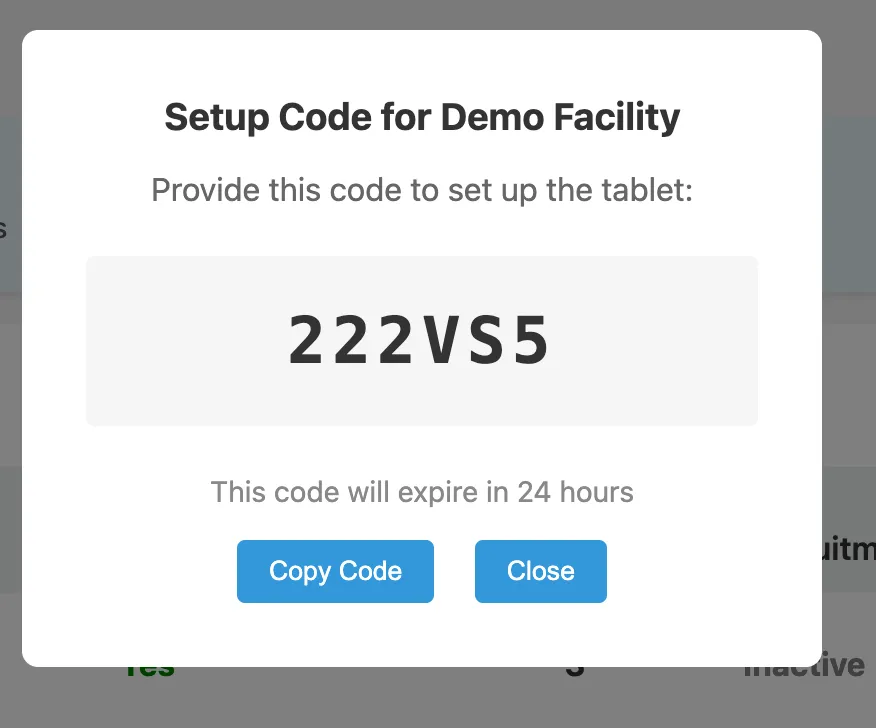
Setup codes expire after 24 hours. Generate a new one if the previous code expires before the tablet is set up.
Setting up a tablet
Tablet setup begins by browsing to https://your-server/tablet directly from the tablet. No login is required. That public page provides the APK download link and step-by-step setup instructions.
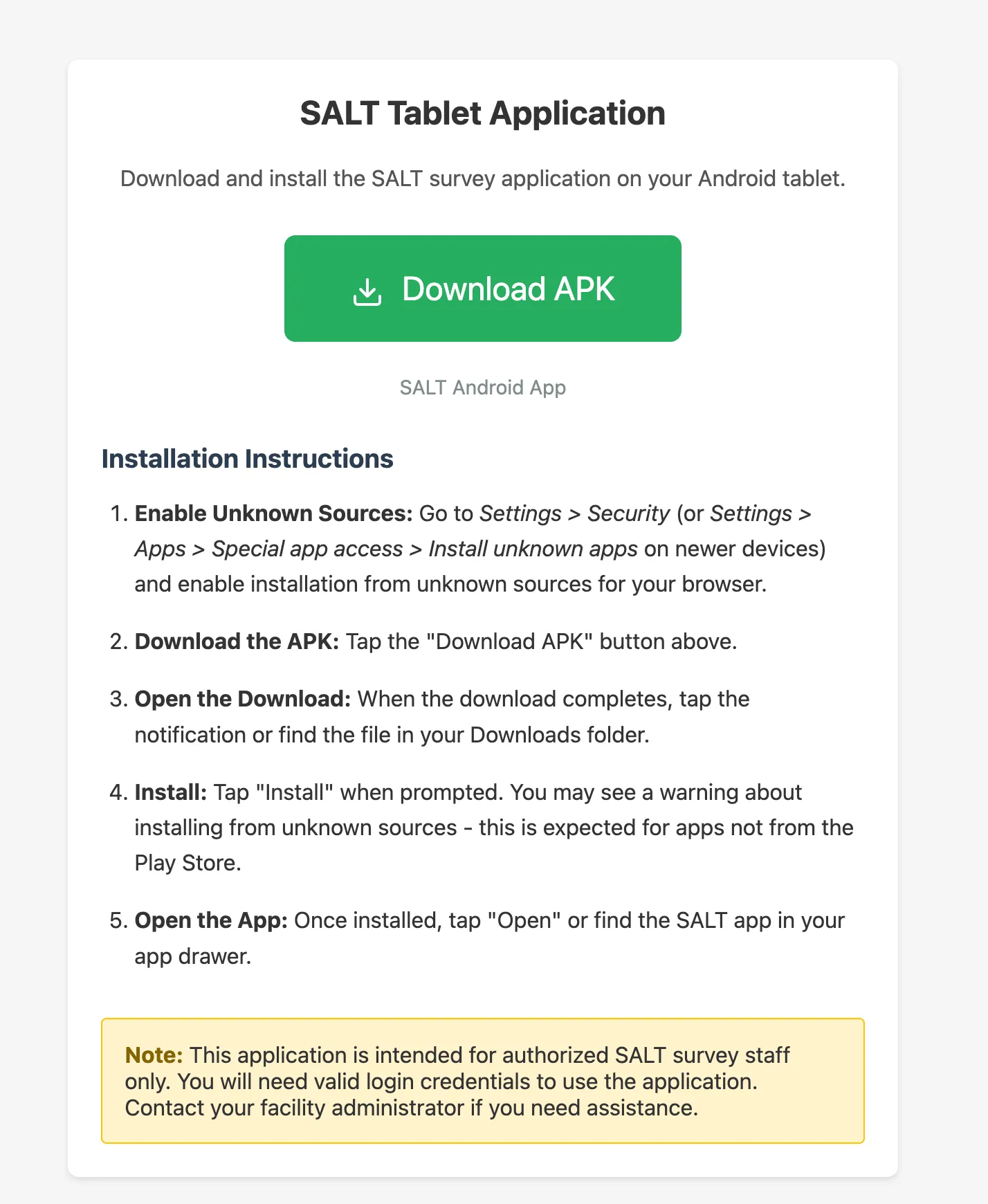
The Download Page link at the top of the Facilities page opens the same /tablet page in a new window.
Deleting a facility
Click the delete icon next to a facility. Deleting a facility does not delete uploaded survey data; historical uploads are retained.